
Intellect™
UTILITY MENU OPTIONS

Set Up
Appointment
Rooms
Use this option to define available rooms for the Check In/Out option in the Scheduler.
Rooms created here are added to those hard-coded rooms already on the drop-down List.

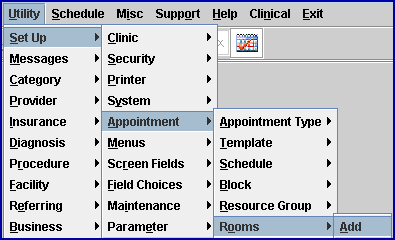
1. To create a rooms schedule in Intellect, go to Utility --► Set Up --► Appointment --► Rooms --► Add:
The Add APPT_ROOMS screen opens:
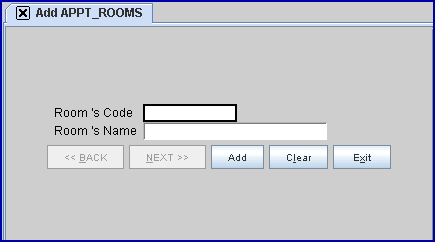
2. Room Code 
2.1 Assign a unique code to this room.
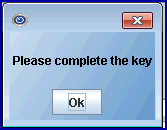
2.2 This field is mandatory and must be completed. If left blank, Intellect displays an error message:
3. Room Name 
3.1 Assign a meaningful name to this room.
4. When the information is completely entered, select one of these options:

4.1 Click [Add] to clear the screen and return the focus to the <Room's Code> field, saving the new type.
4.2 Click [Clear] to clear the screen and return to the <Room's Code> field without saving the new type.
4.3 Click [Exit] to close the Add APPT_ROOMS screen and return to Intellect's main menu screen.